22.10.2026 - Reading time ~15 Minutes
Installing Mikrotik LAMP R16 on a sailboat
Let’s assume you live on a sailboat, or at least spend enough time on it to want a normal internet connection there. Marina Wi-Fi works only in the marina office, if at all. A phone hotspot works until the phone goes ashore with its owner. What a boat really needs is its own LTE/5G router, mounted outside and high, with everything on board connected to it.
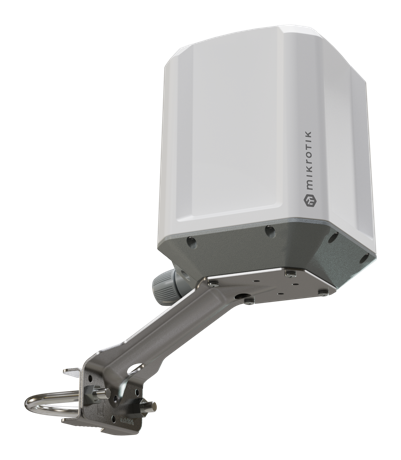
I took the MikroTik LAMP 5G R16 for that job. It’s an outdoor 5G router in a sealed IP67 box with the antennas inside, a Quectel RG520F modem, GNSS, PoE-in on a single Ethernet port and EN 60945 certification, which is the standard for marine electronics. It’s rated for -40…+70 °C, so a summer deck is not a problem. One cable goes down into the boat and that’s it.
Disclaimer: MikroTik is a wonderful hardware that is configured with RouterOS, which is a wonderful operating system with the worst learning curve in the networking world. It does everything, and every thing is done in a way you don’t expect. Don’t panic: you don’t need to understand the commands below. You need to copy, paste and read what the router answers.
What we’re building
SIM ~~5G/LTE~~ LAMP ──cable── laptop, Wi-Fi router or LAN-to-Wi-Fi adapter
LAMP gets the internet from the SIM card and hands it to the boat network on its Ethernet port. Wi-Fi comes from whatever you connect behind it.
Prerequisites
- LAMP 5G R16 with its PoE power
- An active SIM: either a physical one inserted into LAMP, or an eSIM profile already installed on it (the R16 supports both)
- A computer with an Ethernet port (or adapter) and a cable
- The admin password from LAMP’s sticker
- Your carrier’s APN, see below
Talking to the router
Important: Take a picture of the sticker at the bottom of the device and save it safely and tagged where you could find it later if you’ll ever need to reset the router and the sticker is far gone already.
RouterOS is configured with commands typed into a Terminal. Plug the cable into the computer, switch the computer’s Wi-Fi off so it uses the cable, wait 30 seconds and open the Terminal one of the two ways:
- Browser: go to
http://192.168.188.1(LAMP’s default), log in asadminwith the sticker password, click Terminal. - Winbox (recommended): download it from mikrotik.com/download, open the Neighbors tab, click the LAMP, log in, click New Terminal. Winbox connects by MAC address, so it works even when the router’s IP is unknown or wrong. This will save you more than once.
You’ll see a prompt like [admin@MikroTik] >. Paste with right-click → Paste (Ctrl+Shift+V in the browser), press Enter, read the output. Errors tell you the problem and the position in the line.
Warning: never hold the RESET button for more than 2 seconds unless you want to erase the whole configuration.
Checking the modem and the SIM
Find the modem’s name:
/interface lte print
It’s usually lte1. If yours differs, use it everywhere instead of lte1.
Check the SIM:
/interface lte monitor lte1 once
| Line | Good value | If not |
|---|---|---|
pin-status |
ok |
The SIM wants a PIN. Set SIMPIN in the script below. |
registration-status |
registered |
No network. Check the signal or whether the SIM is active. |
current-operator |
your carrier | — |
The APN
The APN tells the modem how to connect to your carrier’s internet. Look for “APN” on the carrier’s website. In Italy, where the boat lives:
| Carrier | APN |
|---|---|
| WindTre | internet.it |
| Very Mobile | internet.it |
| TIM | ibox.tim.it |
| Vodafone | mobile.vodafone.it |
| Iliad | iliad |
Note: this is the first thing I tripped over. The factory APN profile had LTE passthrough enabled, which hands the carrier’s IP straight to the device behind the router and breaks routing for everybody else. The script creates its own profile with passthrough off and with the APN you set.
Why one ugly script
The router came with a factory config, plus everything I had already clicked around in it, plus whatever the carrier pushed. So I wanted one script that brings it to a known state, whatever state it’s in now, and can be run again any number of times.
RouterOS has its own idea of what a script is, and /import makes it worse:
- every line runs on its own, so
:localvariables don’t survive to the next line. Hence:globalre-declared on every line that needs it; - a syntax error aborts the whole import, and
on-errorcan’t catch it; - multi-line blocks
{ ... }break on import, and long lines break when you copy them out of a terminal; - removing something that doesn’t exist is an error, so every cleanup is wrapped in
:do { ... } on-error={}.
The result is a flat list of one-liners that looks stupid and works every time. Believe me, I tried the clever version first. Several times.
The setup script
Create a plain-text file lamp-setup.rsc and edit only the SETTINGS block at the top:
| Setting | What it is | Example |
|---|---|---|
LANP |
First three numbers of the boat network. The router becomes LANP.1, devices get LANP.100–LANP.254. |
"192.168.188" |
APN |
Your carrier’s APN. | "internet.it" |
LTEIF |
Modem name. | "lte1" |
SIMPIN |
SIM PIN, "" if none. |
"1234" |
ADMINPASS |
New admin password, "" keeps the current one. |
"MyStrongPass42" |
RNAME |
Router name in the prompt. | "LAMP" |
DNS1, DNS2 |
Internet name servers. | "1.1.1.1", "9.9.9.9" |
SMSSECRET |
Password for running router scripts by SMS. Long and random, "" keeps the current one. |
"k3Rv9QxT7mWz2LpA" |
Tip: if you put a Wi-Fi router behind LAMP,
LANPmust differ from that router’s own network. Many of them use192.168.0or192.168.1.
# ===================== SETTINGS: edit these lines =====================
:global LANP "192.168.188"
:global APN "internet.it"
:global LTEIF "lte1"
:global SIMPIN ""
:global ADMINPASS ""
:global RNAME "LAMP"
:global DNS1 "1.1.1.1"
:global DNS2 "9.9.9.9"
:global SMSSECRET ""
# ===================== do not edit below this line ====================
:log info "lamp-setup: start"
:global LTEIF; :do { /interface lte enable $LTEIF } on-error={}
:global LTEIF; :global SIMPIN; :if ([:len $SIMPIN] > 0) do={ \
/interface lte set $LTEIF pin=$SIMPIN }
:global RNAME; /system identity set name=$RNAME
:global ADMINPASS; :if ([:len $ADMINPASS] > 0) do={ \
/user set admin password=$ADMINPASS }
:do { /tool netwatch remove [find comment="lte-check"] } on-error={}
:do { /ip dhcp-client remove [find] } on-error={}
:do { /ipv6 dhcp-client remove [find] } on-error={}
:do { /ip route remove [find dst-address=0.0.0.0/0 dynamic=no] } on-error={}
:do { /interface bridge add name=bridge } on-error={}
:do { /interface bridge set bridge disabled=no } on-error={}
:do { :foreach i in=[/interface ethernet find] do={ \
:local n [/interface ethernet get $i name]; \
:if ([:len [/interface bridge port find interface=$n]] = 0) do={ \
/interface bridge port add bridge=bridge interface=$n } } } \
on-error={ :log error "lamp-setup FAIL bridge ports" }
:do { /interface bridge port set [find] bridge=bridge disabled=no } on-error={}
:do { /interface ethernet enable [find] } on-error={}
:do { /interface list add name=LAN } on-error={}
:do { /interface list add name=WAN } on-error={}
:do { /interface list member remove [find dynamic=no] } on-error={}
/interface list member add list=LAN interface=bridge
:global LTEIF; /interface list member add list=WAN interface=$LTEIF
:global LANP; :do { /ip address add address=($LANP . ".1/24") \
interface=bridge } on-error={}
:do { /ip dhcp-server remove [find] } on-error={}
:do { /ip dhcp-server network remove [find] } on-error={}
:do { /ip pool remove [find] } on-error={}
:global LANP; /ip pool add name=lan-pool \
ranges=($LANP . ".100-" . $LANP . ".254")
/ip dhcp-server add name=lan-dhcp interface=bridge address-pool=lan-pool \
lease-time=1d disabled=no
:global LANP; /ip dhcp-server network add address=($LANP . ".0/24") \
gateway=($LANP . ".1") dns-server=($LANP . ".1")
:global DNS1; :global DNS2; /ip dns set allow-remote-requests=yes \
servers=($DNS1 . "," . $DNS2)
:do { /ipv6 settings set disable-ipv6=no } on-error={}
:global LTEIF; /interface lte set $LTEIF apn-profiles=default
:do { /interface lte apn remove [find name="main"] } on-error={}
:global APN; /interface lte apn add name=main apn=$APN ip-type=auto \
add-default-route=yes default-route-distance=1 use-peer-dns=no \
use-network-apn=no ipv6-interface=bridge
:global LTEIF; /interface lte set $LTEIF apn-profiles=main
:do { /ip firewall filter remove [find dynamic=no] } on-error={}
:do { /ip firewall nat remove [find dynamic=no] } on-error={}
:do { /ip firewall mangle remove [find dynamic=no] } on-error={}
:do { /ip firewall raw remove [find dynamic=no] } on-error={}
/ip firewall filter add chain=input action=accept \
connection-state=established,related,untracked
/ip firewall filter add chain=input action=drop connection-state=invalid
/ip firewall filter add chain=input action=accept protocol=icmp
/ip firewall filter add chain=input action=accept dst-address=127.0.0.1
/ip firewall filter add chain=input action=drop in-interface-list=!LAN
/ip firewall filter add chain=forward action=fasttrack-connection \
connection-state=established,related
/ip firewall filter add chain=forward action=accept \
connection-state=established,related,untracked
/ip firewall filter add chain=forward action=drop connection-state=invalid
/ip firewall filter add chain=forward action=drop connection-state=new \
connection-nat-state=!dstnat in-interface-list=WAN
/ip firewall nat add chain=srcnat action=masquerade out-interface-list=WAN
/ip firewall mangle add chain=forward action=change-mss new-mss=clamp-to-pmtu \
protocol=tcp tcp-flags=syn out-interface-list=WAN
:do { /ipv6 firewall filter remove [find dynamic=no] } on-error={}
:do { /ipv6 firewall raw remove [find dynamic=no] } on-error={}
:do { /ipv6 firewall address-list remove [find dynamic=no] } on-error={}
/ipv6 firewall address-list add list=bad_ipv6 address=::/128
/ipv6 firewall address-list add list=bad_ipv6 address=::1/128
/ipv6 firewall address-list add list=bad_ipv6 address=fec0::/10
/ipv6 firewall address-list add list=bad_ipv6 address=::ffff:0.0.0.0/96
/ipv6 firewall address-list add list=bad_ipv6 address=::/96
/ipv6 firewall address-list add list=bad_ipv6 address=100::/64
/ipv6 firewall address-list add list=bad_ipv6 address=2001:db8::/32
/ipv6 firewall address-list add list=bad_ipv6 address=2001:10::/28
/ipv6 firewall address-list add list=bad_ipv6 address=::224.0.0.0/100
/ipv6 firewall address-list add list=bad_ipv6 address=::127.0.0.0/104
/ipv6 firewall address-list add list=bad_ipv6 address=::/104
/ipv6 firewall address-list add list=bad_ipv6 address=::255.0.0.0/104
/ipv6 firewall filter add chain=input action=accept \
connection-state=established,related,untracked
/ipv6 firewall filter add chain=input action=drop connection-state=invalid
/ipv6 firewall filter add chain=input action=accept protocol=icmpv6
/ipv6 firewall filter add chain=input action=accept protocol=udp \
dst-port=33434-33534
/ipv6 firewall filter add chain=input action=accept protocol=udp dst-port=546 \
src-address=fe80::/10
/ipv6 firewall filter add chain=input action=drop in-interface-list=!LAN
/ipv6 firewall filter add chain=forward action=accept \
connection-state=established,related,untracked
/ipv6 firewall filter add chain=forward action=drop connection-state=invalid
/ipv6 firewall filter add chain=forward action=drop src-address-list=bad_ipv6
/ipv6 firewall filter add chain=forward action=drop dst-address-list=bad_ipv6
/ipv6 firewall filter add chain=forward action=drop protocol=icmpv6 \
hop-limit=equal:1
/ipv6 firewall filter add chain=forward action=accept protocol=icmpv6
/ipv6 firewall filter add chain=forward action=drop in-interface-list=!LAN
:do { /ip service set telnet disabled=yes } on-error={}
:do { /ip service set ftp disabled=yes } on-error={}
:do { /ip service set api disabled=yes } on-error={}
:do { /ip service set api-ssl disabled=yes } on-error={}
:global LANP; :do { /ip service set www address=($LANP . ".0/24") } on-error={}
:global LANP; :do { /ip service set ssh address=($LANP . ".0/24") } on-error={}
:global LANP; :do { /ip service set winbox address=($LANP . ".0/24") } \
on-error={}
:do { /ip ssh set strong-crypto=yes } on-error={}
:do { /ip neighbor discovery-settings set discover-interface-list=LAN } \
on-error={}
:do { /tool mac-server set allowed-interface-list=LAN } on-error={}
:do { /tool mac-server mac-winbox set allowed-interface-list=LAN } on-error={}
:do { /tool bandwidth-server set enabled=no } on-error={}
:do { /ip proxy set enabled=no } on-error={}
:do { /ip socks set enabled=no } on-error={}
:do { /ip upnp set enabled=no } on-error={}
:do { /ip settings set tcp-syncookies=yes rp-filter=loose } on-error={}
:do { /system clock set time-zone-autodetect=yes } on-error={}
:do { /system ntp client set enabled=yes \
servers=0.pool.ntp.org,1.pool.ntp.org } on-error={}
:global LTEIF; /tool sms set port=$LTEIF receive-enabled=yes polling=yes
:global SMSSECRET; :if ([:len $SMSSECRET] > 0) do={ \
/tool sms set secret=$SMSSECRET }
:global LTEIF; /tool netwatch add comment=lte-check host=1.1.1.1 interval=2m \
down-script=("/interface lte disable " . $LTEIF . "; :delay 5s; " . \
"/interface lte enable " . $LTEIF)
:global LTEIF; :do { /interface lte disable $LTEIF } on-error={}
:delay 3s
:global LTEIF; :do { /interface lte enable $LTEIF } on-error={}
:log info "lamp-setup: done"
:global LANP; :do { /ip address remove [find interface=bridge dynamic=no \
address!=($LANP . ".1/24")] } on-error={}
What it does
| Area | Setting |
|---|---|
| Internet | LTE/5G with your APN, IPv4 and IPv6, passthrough off. |
| Boat network | All Ethernet ports bridged. Router at LANP.1, DHCP hands out LANP.100–LANP.254. |
| DNS | The router answers the boat network, using DNS1 and DNS2. |
| Firewall | Nothing from the internet reaches the router or the boat network, IPv4 and IPv6. |
| Management | Web, SSH and Winbox only from the boat network. Telnet, FTP and API off. |
| Watchdog | Pings 1.1.1.1 every 2 minutes and restarts the LTE connection when it stops answering. |
| SMS | Receiving on, so the carrier’s texts (balance, top-up, login codes) land in /tool sms inbox. |
| Time | Time zone detected automatically, clock synced over NTP. |
Note: the SMS part is easy to forget, and you’ll miss it the first time the carrier sends a verification code to a SIM sitting on top of the mast. RouterOS ships with SMS receiving off and the port set to
none, so the inbox stays empty forever and nothing tells you why.
Running it
Upload the file: drag it into Files in Winbox, or from the command line:
scp lamp-setup.rsc admin@192.168.188.1:
And run it in the Terminal:
/import file-name=lamp-setup.rsc verbose=yes
The router prints every line as it goes. If it stops with an error, fix the cause and run it again: running it again is safe, that’s the whole point. If you changed LANP, the Terminal freezes at the end. That’s expected: the router has just changed its address. Unplug and replug the cable and reconnect at http://LANP.1, or simply through Winbox → Neighbors.
Checking the result
Wait 30 seconds and paste:
/log print where message~"lamp-setup"; /ip route print where dst-address=0.0.0.0/0; ping 1.1.1.1 count=3; /tool sms print
| Check | Good result |
|---|---|
| Log | lamp-setup: start and lamp-setup: done, no FAIL lines |
| Route | One 0.0.0.0/0 line with the modem as gateway |
| Ping | received=3 |
| SMS | status: running, receive-enabled: yes, port: lte1 |
Send a text to the SIM from a phone, and within about 10 seconds it shows up in /tool sms inbox print. Hooraaah!
The SIM holds only a few dozen messages, and when it’s full, new ones silently stop arriving. The MikroTik manual tells you to set auto-erase=yes. Don’t bother: RouterOS 7 doesn’t have it anymore, the manual page is from the v6 days. So here’s a tiny script that keeps the newest 20 messages, run every hour and after every boot:
/system script add name=sms-keep-20 policy=read,write,test source={ :local keep 20; :local n 0; :while (([:len [/tool sms inbox find]] > $keep) && ($n < 100)) do={ :set n ($n + 1); :local oid; :local ot; :foreach i in=[/tool sms inbox find] do={ :local t [/tool sms inbox get $i timestamp]; :if (([:typeof $ot] = "nothing") || ($t < $ot)) do={ :set ot $t; :set oid $i } }; :if ([:typeof $oid] = "nothing") do={ :set n 100 } else={ /tool sms inbox remove $oid } } }
/system scheduler add name=sms-keep-20 interval=1h start-time=startup on-event=sms-keep-20 policy=read,write,test
Once the internet works, update RouterOS:
/system package update set channel=stable; /system package update check-for-updates; :delay 5s; /system package update install
Wi-Fi on board
LAMP has no Wi-Fi of its own, it’s an outdoor box with one Ethernet port. Connect behind it either:
- a Wi-Fi router by its WAN port, with its own network range different from
LANP; - an access point or a LAN-to-Wi-Fi adapter, then Wi-Fi devices get addresses from LAMP directly.
When the internet drops
And it will. 5G NSA in a busy marina with a poor signal-to-noise ratio is a lottery: the network rearranges the 5G part of the connection, the modem stops passing data, and RouterOS keeps showing the link as up and running. The lte-check watchdog restarts the connection once, and if that doesn’t help, it waits for the internet to come back first, which it won’t.
Important: don’t build anything that power-cycles the modem automatically. The modem also gives you GPS, and every power-cycle costs 6 to 12 minutes of cold start without a position. At sea, out of coverage, such a watchdog would kill your GPS again and again exactly when you need it.
Before you power-cycle or reboot by hand, run /log print: the log lives in memory and a reboot wipes it. If the problem keeps coming back, save the log on flash for a while:
/system logging add topics=critical action=disk
/system logging add topics=error action=disk
/system logging add topics=warning action=disk
/system logging add topics=lte,!raw,!async,!packet action=disk
/system logging add topics=interface action=disk
/system logging add topics=netwatch,!debug action=disk
LTE debug messages stay in: they show what the modem and the network actually did, and that’s where the cause hides. Raw modem traffic stays out, or it floods the flash within minutes.
When it happens again, note the time, collect the status (remove the imei, imsi, iccid and msisdn lines before sharing):
/system resource print; /system routerboard print; /interface lte print detail; /interface lte monitor lte1 once; /system gps monitor once; /tool netwatch print detail; /ip route print where dst-address=0.0.0.0/0; /system logging print
copy the logs to your computer:
scp admin@LAMP_IP:flash/log.0.txt admin@LAMP_IP:flash/log.1.txt .
and feed all of it to an LLM with something like:
My MikroTik LAMP router (RouterOS, Quectel RG520F 5G modem, carrier: ___) loses
internet now and then. Last time: ___ (date and time, router clock), it came back
after ___ (by itself / LTE restart / modem power-cycle / router reboot).
Attached: the router's disk log (log.0.txt, log.1.txt; log.1 is older) and status
output (status.txt). The netwatch entry "lte-check" restarts LTE when 1.1.1.1 stops
answering.
1. Find the events around the outage and explain what happened, step by step.
2. Tell me whether the cause is the radio signal, the carrier's network, the modem,
   or the router configuration.
3. Suggest fixes in order of safety. Give RouterOS commands I can paste, and say
   what each one changes and how to undo it.
Don't suggest anything that restarts the modem automatically: the modem also
provides GPS for navigation.
It reads a thousand lines of MBIM debug much faster than you do. When you’re done, switch the disk logging off, the flash will thank you:
/system logging remove [find action=disk]
/file remove [find name~"^flash/log"]
Some useful notes
- Locked out completely? Unplug the power, hold RESET, plug the power back, keep holding until the LED flashes (about 5 seconds). Everything is erased, run the script again.
- Need to clear the SMS inbox right now?
/tool sms inbox remove [find]. - Unicode SMS come garbled: RouterOS reads plain GSM text only.
- After a RouterOS update, extra packages must match the new version exactly. You’ll need that for the next part.
Next time: getting the boat’s GPS position out of LAMP and onto the navigation tablet over NMEA, with a tiny container running on the router itself.